Manually Setting White Balance for Artificial Light: Step-by-Step Guide
Manually Setting White Balance for Artificial Light: Step-by-Step Guide
This guide shows why manual white balance matters and walks you through a clear, repeatable process. It’s designed to help you achieve natural skin tones and true whites across artificial lighting, with a focus on a reliable workflow you can reuse on set and in the studio.
Why Manually Setting White Balance
White balance is about color accuracy. When you set it manually, you control how your camera renders whites, keeping surrounding colors faithful. You guide your camera instead of letting it guess, resulting in consistent skin tones and true blues, greens, and reds from shot to shot. If you’ve struggled with orange casts or muddy whites in post, manual WB from the start helps.
On location, lighting changes quickly. Auto WB can chase shadows or streetlights and misread the scene. Manual WB locks in a baseline that matches your light source, with room to tweak as needed. It’s about knowing which setting to pick for the moment, increasing confidence and speed, especially in mixed light or during sunset.
If you shoot in similar environments often, you’ll benefit from presets for common spots (indoor, golden hour, studio). Consistent WB saves time in post and builds reliability for clients who expect colors to stay true across a series.
Benefits over Auto in Artificial Light
Under artificial light, Auto WB often balances everything too aggressively, muting warmth or cooling the scene unevenly. Manual WB lets you choose the exact color temperature to match the light, preserving natural skin tones and crisp whites. Fewer hidden tints in shadows and more detail in highlights lead to photos that feel honest rather than camera-made.
Manual WB keeps a consistent look across a shoot in artificial environments—labs, offices, gyms, or studios with LEDs or fluorescents. You can dial in a temperature that matches the lights, avoiding jarring frame-to-frame shifts and making editing faster. It also communicates a clear method to clients, building trust and reducing post-delivery back-and-forth.
When Manual White Balance Improves Color
Manual WB shines when lights aren’t color-neutral—LEDs with blue-green tints or tungsten lamps that glow amber. In these moments, a targeted temperature neutralizes the unwanted cast so colors pop as you see them.
Mixed lighting further benefits from manual WB: different parts of the frame may have different temps. Auto WB can jump around; manual lets you pick a target and either lock it or bias differently for creative effect. You decide the tone, not the camera.
For studio product shots under LEDs or portraits by a window, manual WB helps keep a clean, predictable palette. Your images look cohesive as a gallery rather than a patchwork of color casts.
Quick Facts About Color Temperature
- Color temperature describes warmth or coolness and is measured in Kelvin (K).
- Common ranges:
- Warm lights: ~2700–3200K
- Neutral/white lighting: ~3500–4500K
- Cool daylight: ~5000–6500K
- Adjusting white balance moves colors toward neutral or toward a chosen mood. Indoors under tungsten, you’ll often shoot around 2800–3200K. Under bright office LEDs, 4000–4500K can yield a crisper look. Outdoors, 5200–5600K is typical unless you want a warmer or cooler mood.
- Small changes can have big effects: a 2000–3000K shift can alter skin tones and whiteness dramatically. Test a few presets before a big shoot to save edits later.
Know Types of Artificial Light and How They Shift Color
Indoors you’ll encounter tungsten, LED, and fluorescent lighting, each with distinct color casts.
- Tungsten: warm glow leaning red; whites can drift yellow/orange if not balanced.
- LEDs: range from cool to warm; some fixtures skew blue, others amber or neutral. Fluorescents can be greenish or blue-green and may dull reds or skin tones.
- Fluorescents: greenish casts are common; LEDs vary widely in color output.
Understanding these shifts helps you set WB before you press the shutter, staying in control and avoiding post surprises.
Typical Kelvin Ranges for Common Bulbs
- Tungsten: 2700–3200K
- Fluorescents: 3500–4200K
- LEDs: 2700–6500K (wide range depending on fixture)
Knowing these ranges helps you pick a WB preset quickly or dial in a custom setting for consistent results.
Know How to White Balance with Artificial Light
White balance is your ally under artificial light. Use presets like Tungsten, Fluorescent, or Daylight as starting points, but manual WB often nails the exact hue you want. Your goal is clean whites that stay white.
Practical steps:
- Test with a gray card or white sheet under the lighting. Take a shot, evaluate, and adjust until whites look right.
- For scenes with mixed sources, use a custom WB to match the dominant light, then adjust as needed for balance across the frame.
- Shooting RAW gives flexibility to adjust WB later without sacrificing detail.
Camera Controls for Custom WB
Custom white balance isn’t magic; it’s a repeatable routine that yields reliable colors across lighting changes. It’s especially helpful for tricky lighting, mixed bulbs, or streetlamps.
Where to Find Manual White Balance Settings
- Look in the WB or Color settings menu.
- Choose Manual, Custom, or Kelvin (K).
- If your camera offers a gray-card method, you can measure a neutral reference in-scene and lock that reading.
Using RAW and Preset Modes for Control
- RAW provides maximum latitude for WB adjustments in post.
- Presets (Auto, Daylight, Tungsten, Fluorescent) are quick baselines but aren’t as precise as manual WB.
- Use presets as a starting point, then switch to manual or RAW for exact control.
Steps to Access Custom WB In-Camera
- Switch to Manual (M) mode to avoid exposure conflicts.
- Go to White Balance, choose Custom or Kelvin.
- If using Kelvin, set a temperature; if using a card, photograph a neutral gray/white card and lock the reading.
- Take a test shot to confirm and adjust if needed.
Step-by-Step Custom WB
You’re about to gain real control over color in your photos. The Step-by-Step Custom WB approach gives you consistent colors across frames, even in mixed lighting.
Step-by-Step White Balance Setting Guide
1) Choose Manual WB mode and frame a neutral reference (gray/white card) under current light.
2) Fill the frame with the reference and shoot a quick frame.
3) Set the WB to the captured reading (or dial in a Kelvin value that matches the lighting).
4) Re-test and adjust until skin tones and whites look neutral.
Using Gray Card for White Balance
Place a gray or white card under the same lighting, fill the frame, and shoot. Use that image to set a precise custom WB. If you can sample WB from the card, do so to minimize surprises when lights shift.
Exact Sequence to Set Custom WB
1) Switch to Manual WB.
2) Frame and shoot a neutral reference.
3) Open WB settings and set custom WB from the captured image.
4) Confirm and apply. Save as a preset if possible for quick changes later.
Using the Kelvin Scale
Kelvin is a practical dial for color mood. Lower values feel warm; higher values feel cool. Use Kelvin to tell your camera what white should look like in the moment, and lock in a consistent look across your shoot.
How to Adjust Kelvin White Balance
- Set WB to Kelvin mode and pick a value (start around 3500K for indoors; move toward 3200K for warmer skin tones or 5600K for daylight balance).
- Take a quick test shot and adjust in small steps based on skin tone and overall color cast.
- If unsure, keep a notebook of go-to Kelvin values for common rooms.
Match Kelvin to Your Light Source Quickly
- Dominant light: set Kelvin to mirror it (e.g., tungsten ~3200K, daylight ~5200–5600K).
- If unsure, use a quick cheat: warm rooms lower the Kelvin; cool rooms raise it.
- Save backup values for fast shoots; consistent WB reduces editing time.
Common Indoor Kelvin Targets
- Tungsten: around 3200K
- Soft white LEDs: 3500–4200K
- Mixed light with daylight tilt: 4000–4500K (adjust as needed for skin tones)
Custom WB for Fluorescent and LED
Custom WB helps keep colors accurate when fluorescents or LEDs dominate. Start with a simple target (gray or white card) under the same lighting, set Custom WB, then test and adjust. If bulbs change, re-check and re-save your Custom WB. Consistency saves long edits and keeps skin tones natural.
Set Custom WB for Fluorescent Light
Fluorescents can cast greenish or blue tint. Use a neutral target, save a Custom WB, and test on a white surface. If whites look off, refine the WB under the same lights. Fluorescent tubes vary, so re-check when tubes or ballasts change.
White Balance for Tungsten and LED Lights
- Tungsten: balance toward cooler WB to neutralize orange skin.
- LEDs: aim for neutral or cooler WB to avoid red/magenta casts.
- Use Custom WB to lock in the exact balance for your space.
Tips for Mixed LED and Tube Lights
When both sources are present, choose a dominant light for the WB and test with a gray card. A compromise WB often works best to keep most colors within a natural range. Short, controlled test frames help you pick the most natural overall look.
Manual WB vs Auto WB
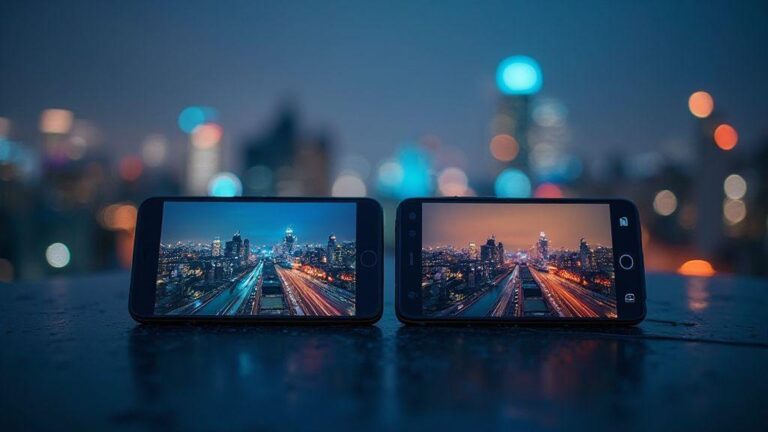
Manual WB gives you precise control for consistent color across scenes. Auto WB can be convenient but is a moving target, especially with flickering lights or strong color casts. Quick tests comparing Auto and Manual WB under the same light show which approach better preserves skin tones and whites.
Troubleshooting Color Casts
Color casts can derail your photos. Check for mixed lighting, backlighting, or strong color accents that push your WB in the wrong direction. Use a gray card to calibrate and save that reading as a baseline. If casts persist, adjust WB, temperature, and tint in small steps, and re-test.
Fix Green or Magenta Tint from Tubes
- Identify the dominant tube type; adjust WB toward the corresponding target (fluorescent greenish casts, certain LEDs magenta).
- If needed, use tint (G/M) controls to counter the cast.
- Re-shoot with a neutral card to confirm, and save a new Custom WB if necessary.
How to Set WB Under Artificial Lighting in Mixed Scenes
- Pick a dominant light source and set WB to match it.
- If possible, shoot a neutral reference frame with a gray card under the same lighting and use that to establish a Custom WB.
- For mixed scenes, bias toward the warmer or cooler side as needed; avoid overcorrection.
Quick In-Camera Fixes and Checks
- Shoot a gray or white card under current lighting and review at full size.
- Use a matching preset, then fine-tune temperature to smooth any remaining cast.
- Ensure your color profile isn’t exaggerating greens or magentas; reset to a neutral profile if needed.
- When in doubt, revert to a manual custom WB with a gray reference.
Workflow from Shoot to Edit
Plan your lighting and WB ahead of time. Keep settings consistent to reduce post-work. Shoot in RAW when possible for maximum latitude to refine WB in post, then flag or star the best frames for easy access during editing. A consistent naming and folder structure speeds up workflow.
White Balance Calibration for Indoor Lighting
Indoor light shifts color subtly. Use a custom WB or a neutral gray card for a baseline, then lock it for the shoot. If you don’t have a gray card, a white card can work, but a true reference saves time later. For mixed lighting, lock WB to a mid-gray reference and adjust in post if needed.
Use RAW to Fine-Tune White Balance Later
RAW files let you adjust temperature and tint after shooting without sacrificing quality. Start with a global WB adjustment and refine locally where needed. RAW lets you experiment with mood while keeping options open.
Manually Setting White Balance for Artificial Light: Step-by-Step Guide is here to help you achieve consistent, natural colors across any artificial lighting, from tungsten to LEDs and fluorescents. With practice, you’ll learn to trust your WB decisions on set, speeding up both capture and edit while delivering professional, cohesive results.

Smartphone Night Photography Enthusiast & Founder of IncrivelX
Vinicius Sanches is a passionate smartphone photographer who has spent years proving that you don’t need an expensive camera to capture breathtaking images after dark. Born with a natural curiosity for technology and a deep love for visual storytelling, Vinicius discovered his passion for night photography almost by accident — one evening, standing on a city street, phone in hand, completely mesmerized by the way artificial lights danced across wet pavement.
That moment changed everything.
What started as a personal obsession quickly became a mission. Vinicius realized that millions of people were carrying powerful cameras in their pockets every single day, yet had no idea how to unlock their true potential after the sun went down. Blurry shots, grainy images, and washed-out colors were robbing everyday people of memories and moments that deserved to be captured beautifully.
So he decided to do something about it.
With years of hands-on experience shooting city streets, starry skies, neon-lit alleyways, and creative night portraits — all with nothing but a smartphone — Vinicius built IncrivelX as the resource he wished had existed when he was just starting out. A place with no confusing jargon, no assumptions, and no gatekeeping. Just honest, practical, beginner-friendly guidance that actually gets results.
Vinicius has tested dozens of smartphones from every major brand, explored dark sky locations across multiple states, and spent countless nights experimenting with settings, compositions, and editing techniques so that his readers don’t have to start from scratch. Every article on IncrivelX comes from real experience, real mistakes, and real lessons learned in the field.
When he’s not out shooting at midnight or writing in-depth guides for the IncrivelX community, Vinicius can be found exploring new cities with his phone always within reach, looking for the perfect shot hiding in the shadows.
His philosophy is simple: the best camera is the one you already have — you just need to learn how to use it in the dark.